

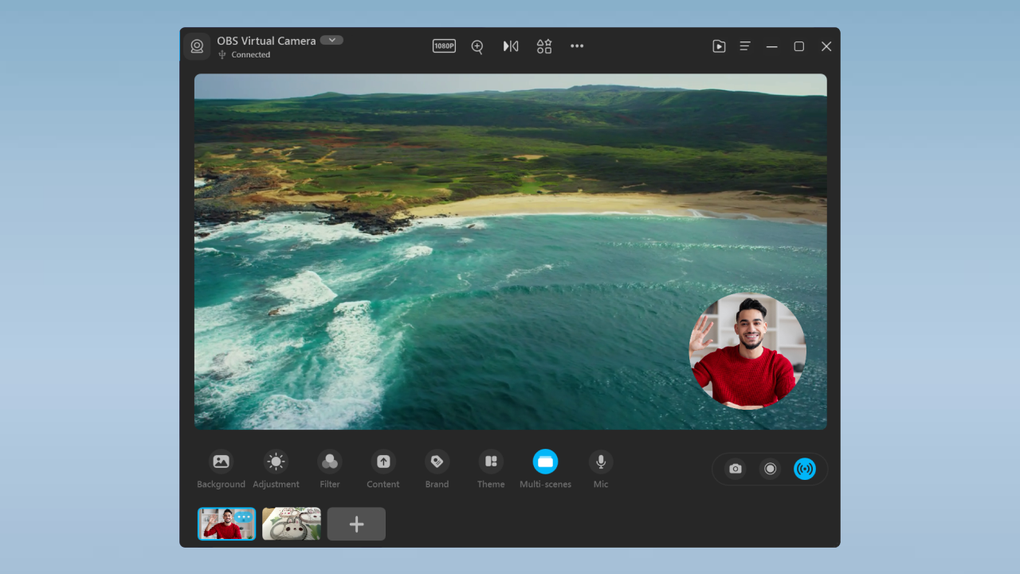
Description
Download FineShare FineCam – AI-Powered Virtual Camera for Windows, Mac, Android & iOS
FineShare FineCam is a powerful, AI-driven virtual camera software designed to elevate your video presence across platforms. Whether you're presenting in a Zoom meeting, streaming on YouTube, or recording a tutorial, this tool transforms your standard webcam feed into a professional-grade video stream. With real-time background removal, smart portrait enhancement, screen recording, and seamless integration with apps like Zoom, Microsoft Teams, and OBS, FineShare FineCam delivers a complete video solution in one lightweight app. Available for Windows, Mac, Android, and iOS, it’s ideal for remote workers, educators, content creators, and social media influencers who want to look polished without the complexity of advanced editing tools. The free trial lets you experience core features like AI background replacement and real-time filters, while premium subscriptions unlock full functionality, including multi-device support and priority customer service.
Key Features of FineShare FineCam
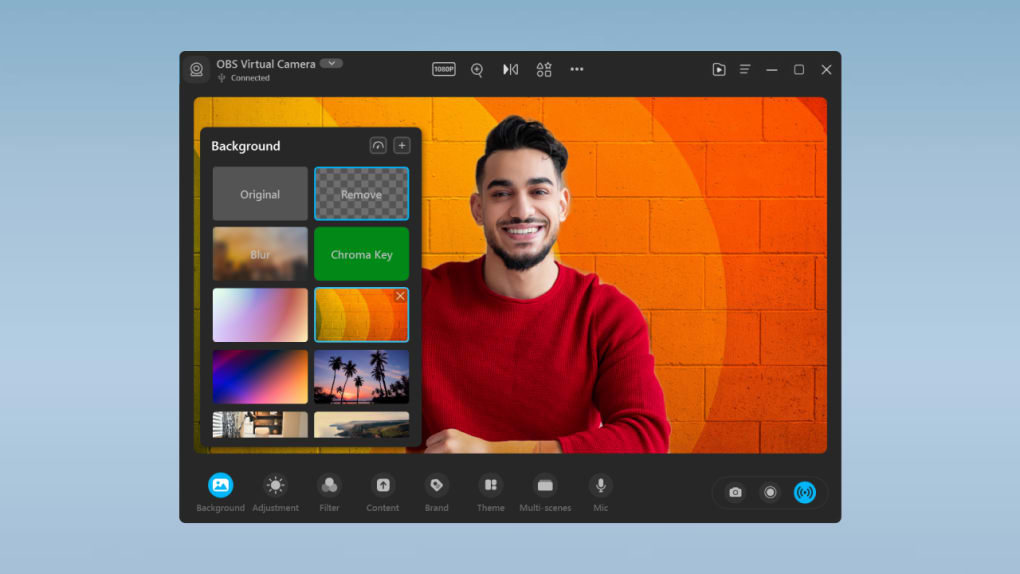
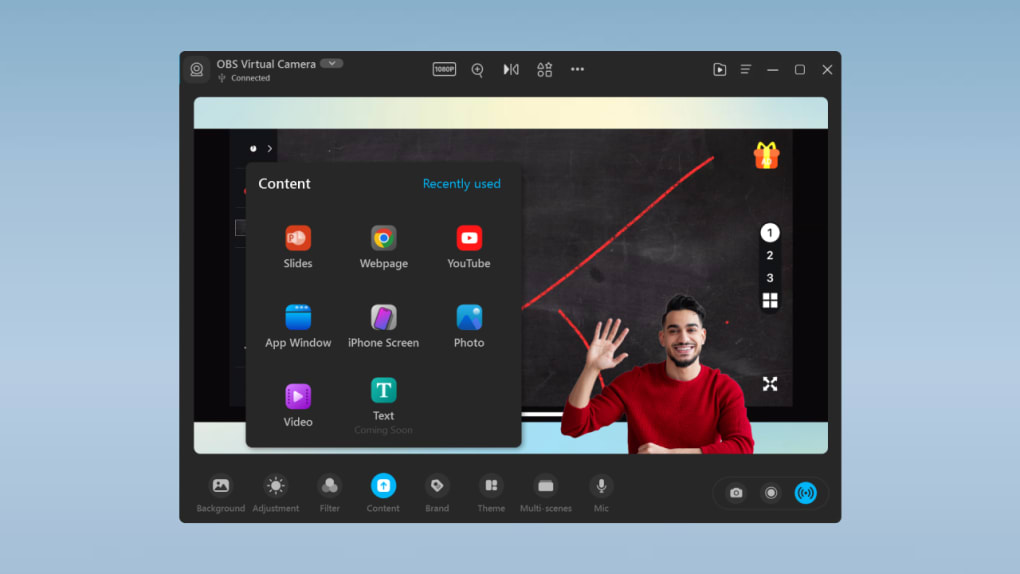
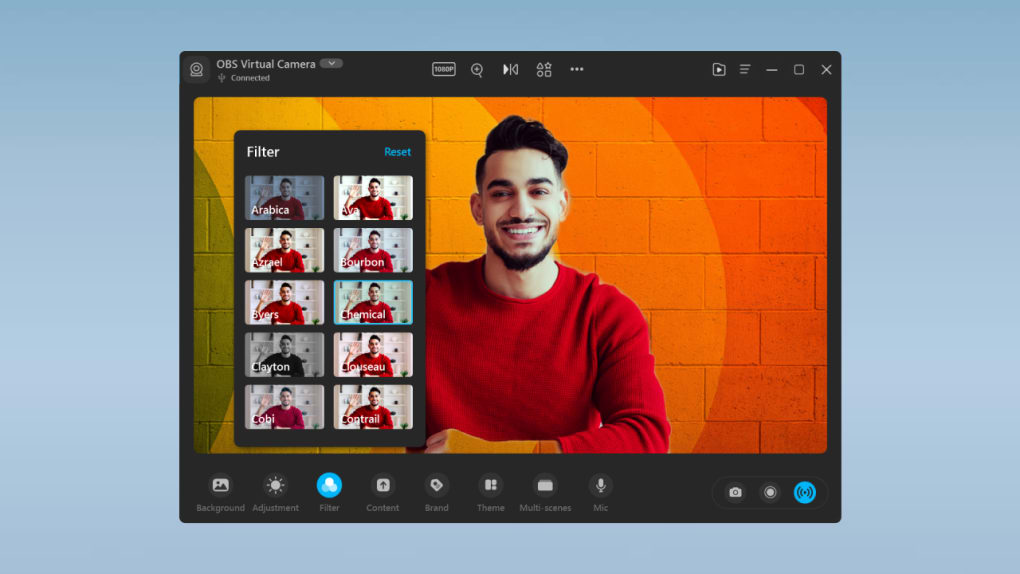
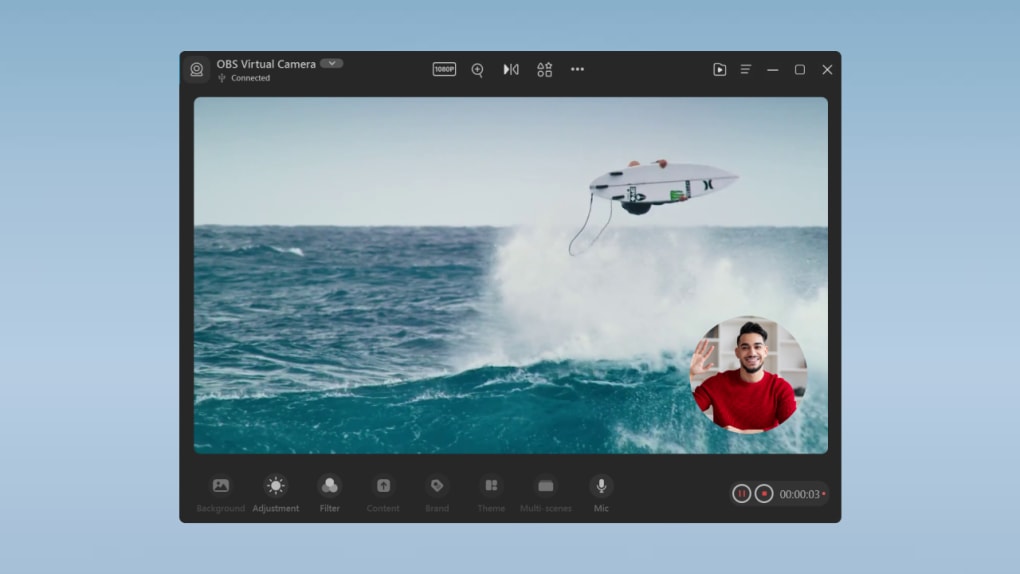
FineShare FineCam stands out in the crowded virtual camera market thanks to its intelligent, user-friendly design and robust feature set. At the heart of the app is its AI-powered background removal system, which uses advanced face recognition and Chroma Key technology to detect and isolate your figure in real time. This means you can instantly replace your physical background with a static image, animated scene, or even a live video feed—perfect for remote presentations or creative content. The precision is impressive, with minimal edge errors and smooth transitions, even when moving around during a call.
Another standout feature is the Smart Portrait mode, which automatically enhances facial details, reduces blemishes, and adjusts lighting to make you look your best. This is especially useful in low-light environments where standard webcams often produce grainy or washed-out images. The app also offers customizable background blur, allowing you to strike the perfect balance between focus and context—ideal for casual chats or professional settings where you want to maintain a sense of presence without distracting visuals.
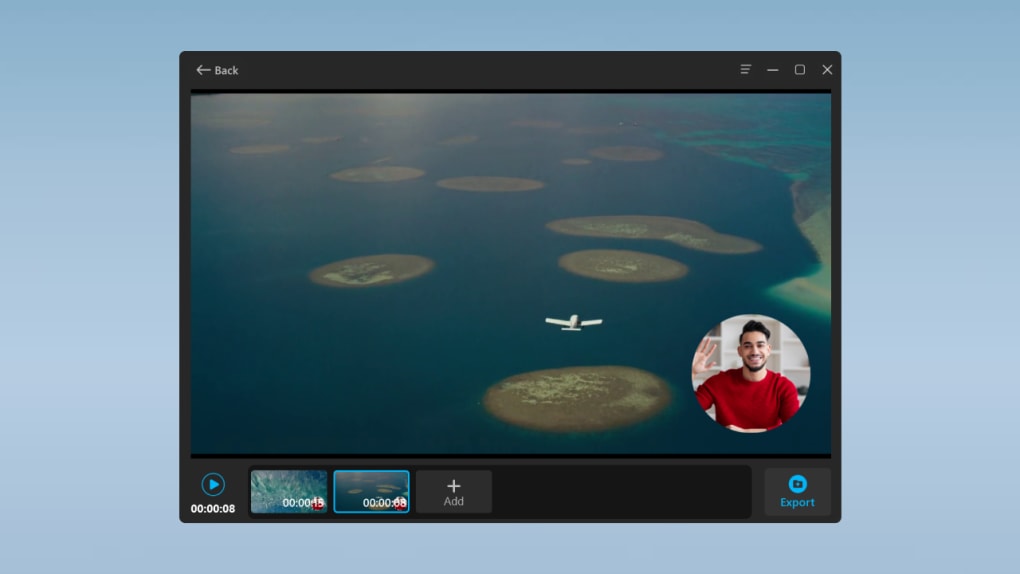
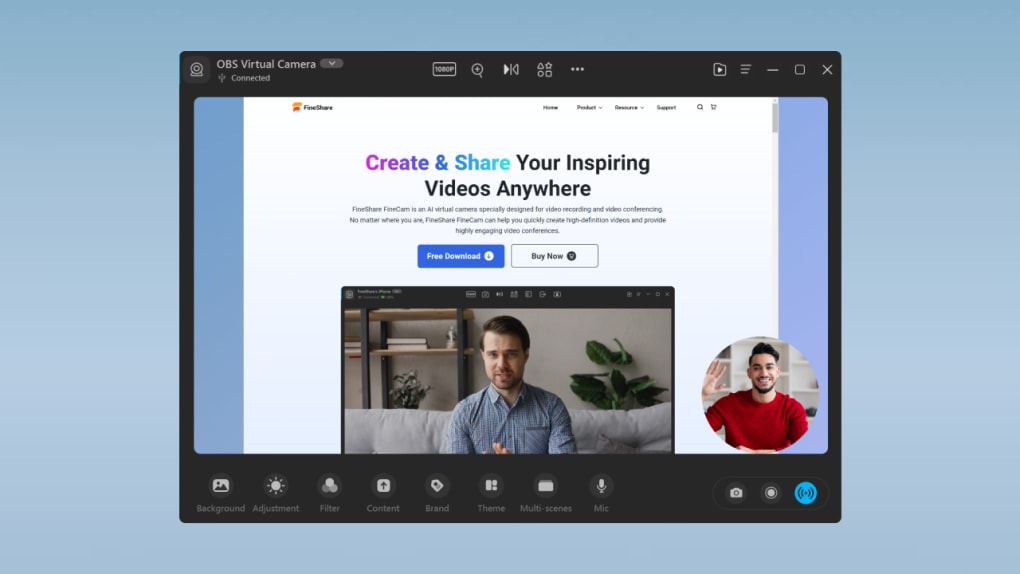
Beyond visual enhancements, FineShare FineCam includes a built-in screen recorder and screen mirroring tool. You can record your screen directly within the app without switching to another program, making it easy to create tutorials, demos, or live streams. The screen mirroring function lets you wirelessly project your Android or iOS device’s display to your computer, enabling seamless mobile-to-desktop sharing during presentations. For post-production, the overlay editor allows basic video editing—cutting clips, adding text, adjusting brightness—giving you full control over your final output.
How to Install and Use FineShare FineCam
Installing FineShare FineCam is quick and straightforward across all supported platforms. On Windows and Mac, visit the official FineShare website, download the installer, and run it. The setup wizard guides you through the process with minimal user input. Once installed, launch the app and allow it to access your camera and microphone permissions—this is essential for real-time processing.
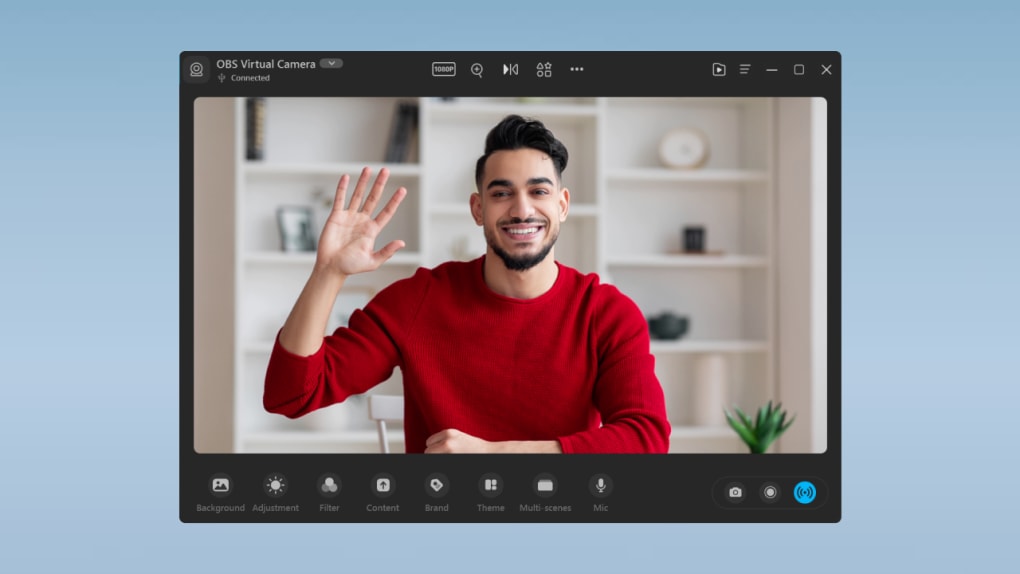
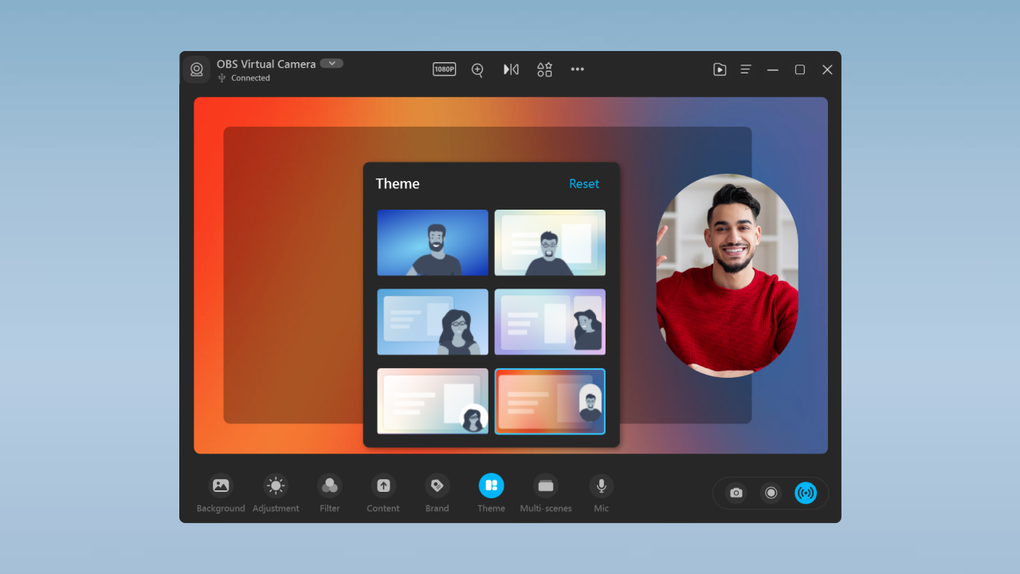
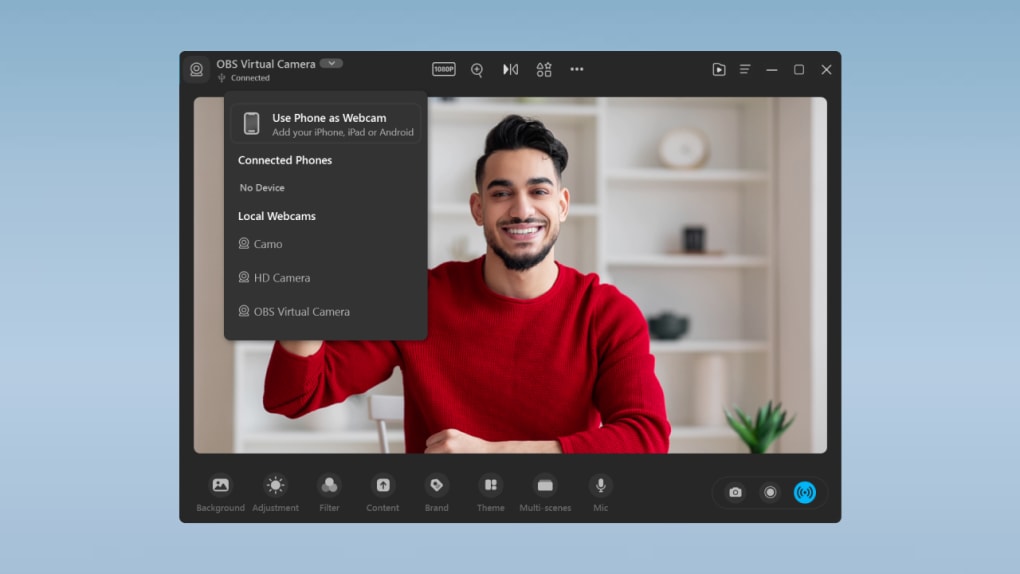
After setup, you’ll be greeted with an intuitive dashboard. Select your camera source (built-in webcam or external device), then choose from the available effects. For background removal, simply enable the AI background feature and select your preferred replacement—whether it’s a solid color, a photo, or a dynamic animation. The app automatically adjusts to your movements, ensuring a smooth and natural look. You can fine-tune the blur intensity and brightness levels using the on-screen sliders.
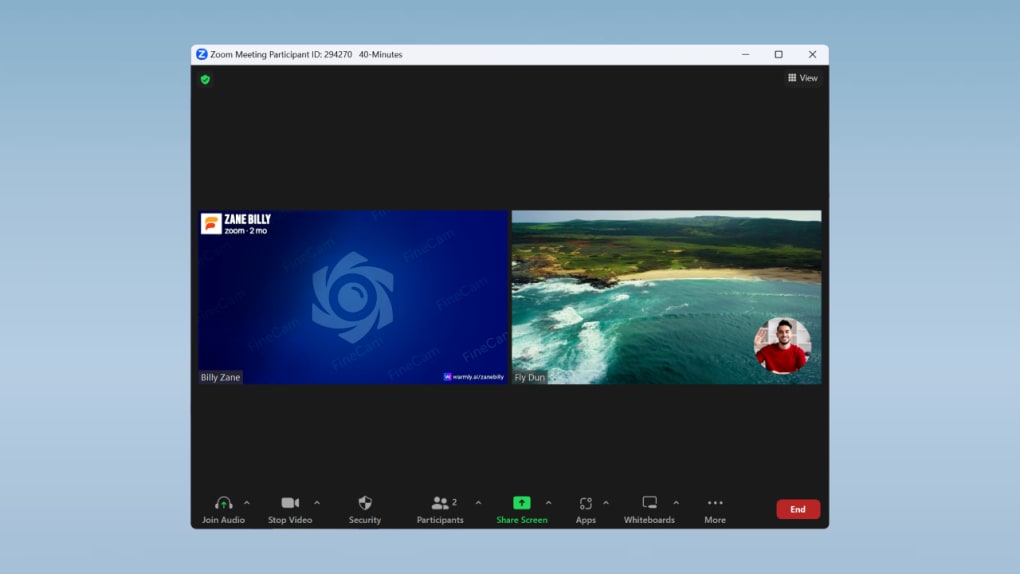
To use FineShare FineCam as a virtual camera in other apps, go to the "Virtual Camera" tab and enable the virtual device. Then, in Zoom, Teams, OBS, or any video conferencing platform, select "FineShare FineCam" as your camera source. Your enhanced feed will now stream in real time. For screen recording, click the “Record” button and choose the area to capture. The app supports both full-screen and custom region recording, with options to include audio and cursor highlights.
Compatibility & System Requirements
FineShare FineCam is designed to work across a wide range of devices and operating systems, making it accessible to most users. It supports Windows 7 and later, including Windows 10 and Windows 11, ensuring compatibility with both older and modern machines. For Mac users, the app runs smoothly on macOS 10.14 (Mojave) and higher, including Apple Silicon (M1/M2) Macs with native optimization for performance and battery efficiency.
Mobile users aren’t left out either. The Android version is available on devices running Android 6.0 and above, while the iOS app supports iPhone 6s and later, as well as iPad models with compatible cameras. This cross-platform availability allows you to use the same virtual camera experience whether you're on a desktop, laptop, or mobile device.
System requirements are modest, which is great for users with mid-range hardware. A minimum of 2GB RAM and a dual-core processor is recommended, though 4GB RAM and a modern GPU will deliver the best performance, especially when using AI features like background removal and real-time filters. The app is lightweight and doesn’t consume excessive CPU or memory, so you can run it alongside other applications without lag.
Pros and Cons of FineShare FineCam
Pros
- AI-Powered Background Removal – Uses facial recognition and Chroma Key for accurate, real-time background replacement.
- Smart Portrait Enhancement – Automatically improves lighting, skin tone, and facial clarity for a professional look.
- Multi-Platform Support – Available for Windows, Mac, Android, and iOS, with consistent features across devices.
- Seamless App Integration – Works with Zoom, Teams, OBS, Skype, and other major video platforms as a virtual camera.
- Built-in Screen Recorder & Mirroring – Eliminates the need for third-party tools when recording or sharing mobile content.
- Free Trial Available – Lets users test core features before committing to a paid plan.
Cons
- Advanced Features Locked Behind Subscription – Full functionality like multi-device support and priority support requires a paid plan.
- AI Processing Can Lag on Older Devices – Users with low-end hardware may experience slight delays in background detection.
- Limited Video Editing Tools – While the overlay editor is useful, it lacks advanced features like transitions, effects, or multi-track editing.
- Mobile App Has Fewer Features – The Android and iOS versions are more limited compared to desktop versions.
- No Offline Mode for AI Features – Some AI functions require an internet connection for optimal performance.
Frequently Asked Questions (FAQ)
Can I use FineShare FineCam as a virtual camera in Zoom?
Yes, absolutely. After enabling the virtual camera in FineShare FineCam, you can select it as your camera source in Zoom, Teams, OBS, and other video apps. It works seamlessly as a drop-in replacement for your default webcam.
Is FineShare FineCam free to download?
Yes, FineShare FineCam offers a fully functional free trial that allows you to use core features like background removal, filters, and screen recording. However, to unlock premium features and multi-device access, you’ll need to subscribe to one of the paid plans.
Does FineShare FineCam work on Mac with Apple Silicon (M1/M2 chips)?
Yes, the Mac version is fully optimized for Apple Silicon, delivering excellent performance and battery life on M1 and M2 MacBooks and iMacs.
Can I mirror my Android or iPhone screen using FineShare FineCam?
Yes, the app includes a built-in screen mirroring feature that lets you wirelessly stream your mobile device’s display to your computer—perfect for presentations or sharing mobile content during calls.
Do I need an internet connection for AI features?
While some AI functions can run locally, optimal performance—especially for background removal and face detection—requires a stable internet connection to access cloud-based processing.
Final Verdict: Is FineShare FineCam Worth It?
FineShare FineCam is one of the most versatile and intelligent virtual camera tools available today. Its AI-driven enhancements, real-time background effects, and seamless integration with popular platforms make it a must-have for anyone who relies on video communication. Whether you're a remote worker, educator, or content creator, the app delivers a professional-grade video experience without the need for expensive gear or complex editing software.
The free trial gives you a solid taste of what the app can do, and upgrading to a subscription unlocks powerful features like multi-device support and 24/7 priority help. While the mobile versions are somewhat limited, the desktop experience is polished and efficient. If you're looking for a secure, easy-to-use, and feature-rich video tool that works across Windows, Mac, Android, and iOS, FineShare FineCam is an excellent choice.
Download FineShare FineCam today and transform your video calls into polished, engaging presentations with just a few clicks.
Guides & Tutorials for FineShare FineCam
How to install FineShare FineCam
- Click the Preview / Download button above.
- Once redirected, accept the terms and click Install.
- Wait for the FineShare FineCam download to finish on your device.
How to use FineShare FineCam
This software is primarily used for its core features described above. Open the app after installation to explore its capabilities.
User Reviews for FineShare FineCam 0
No reviews found





